Architecture Overview#
This page explains how the main components of OptScale AI work together, from the Admin Console and Chat to request processing, access control, providers and routing, MCP integrations, policies and guardrails, and observability.
OptScale AI has two primary user-facing surfaces: Admin Console, where administrators configure and govern the platform, and Chat, where users interact with approved AI models, tools, and data sources. Both operate within the same organization, and the configuration defined in the Admin Console determines what is available in Chat.
For definitions of key platform components and capabilities, see Core Concepts. For the Admin Console screen map and recommended setup order, see Admin Console Overview.
Admin Console and Chat#
Admin Console#
The Admin Console is the configuration and monitoring surface of OptScale AI. Organization managers use it to connect providers, manage access, enforce policies, and monitor costs and traces. The default landing page is Home.
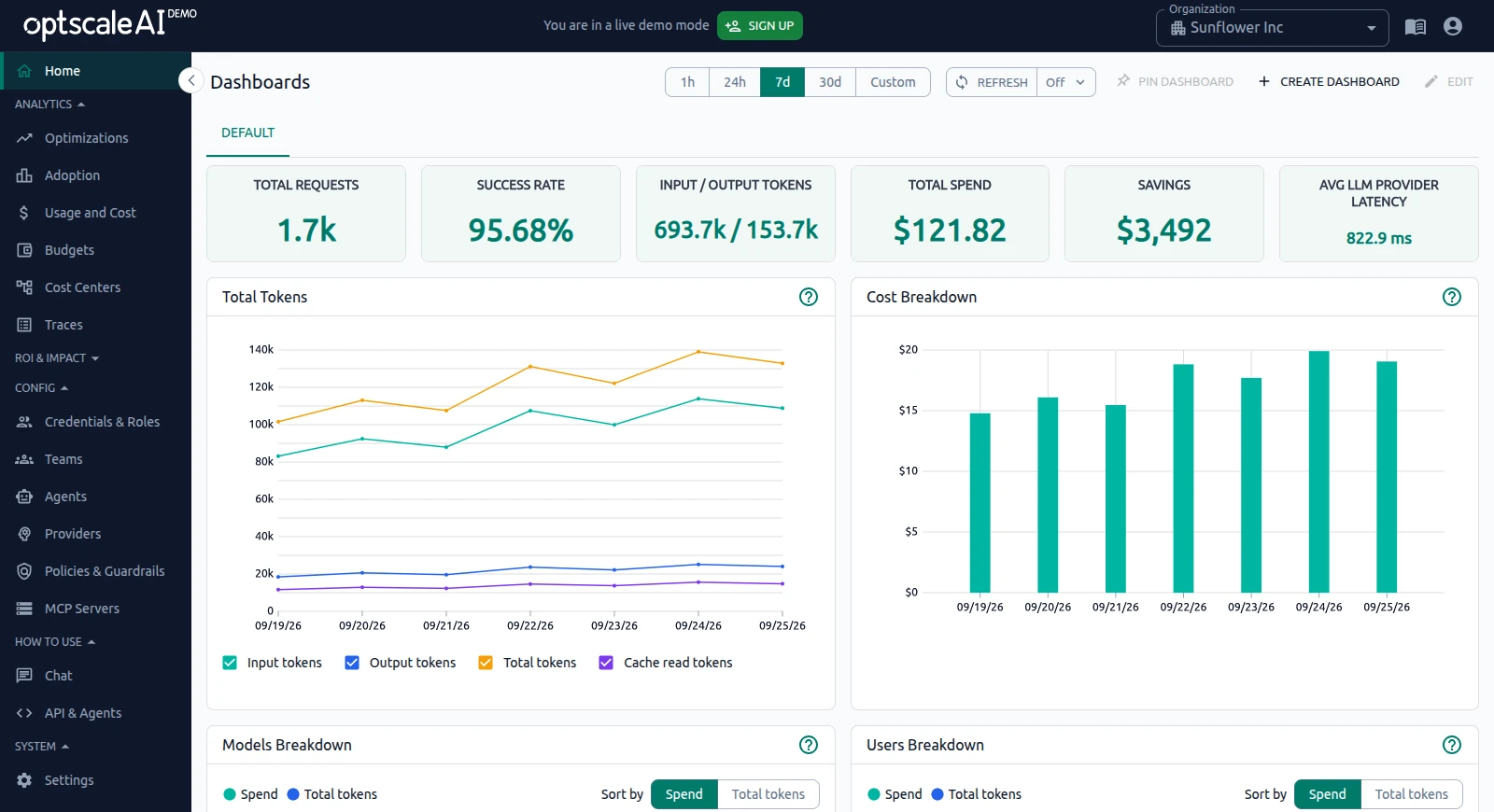
To open the Admin Console:
- Open the Admin Console at
https://<OptScale AI host>/. - If you are in Chat, click GO TO ADMIN CONSOLE in the top bar, next to the organization name.
A Member cannot access the Admin Console.
The left sidebar groups screens into Analytics, ROI & Impact, Config, How to Use, and System. For an overview of each area and the recommended setup order, see Admin Console Overview.
Chat#
Chat is the primary end-user workspace for interacting with approved AI models. It is available on the same OptScale AI host as the Admin Console.
To open Chat:
- Open Chat at
https://<OptScale AI host>/chat. - From the Admin Console, open How to Use → Chat and use the provided link to open the Chat workspace.
Chat provides a unified interface for conversations, task execution, file and media handling, and access to approved tools and data sources. It operates within the governance framework configured in the Admin Console, including provider access, routing rules, policies, guardrails, and usage controls.
Within Chat, users can navigate between chat areas, access projects and settings, connect external tools, and view conversation history. Select an Organization, Provider, and Model to scope available resources and start interacting with AI models.
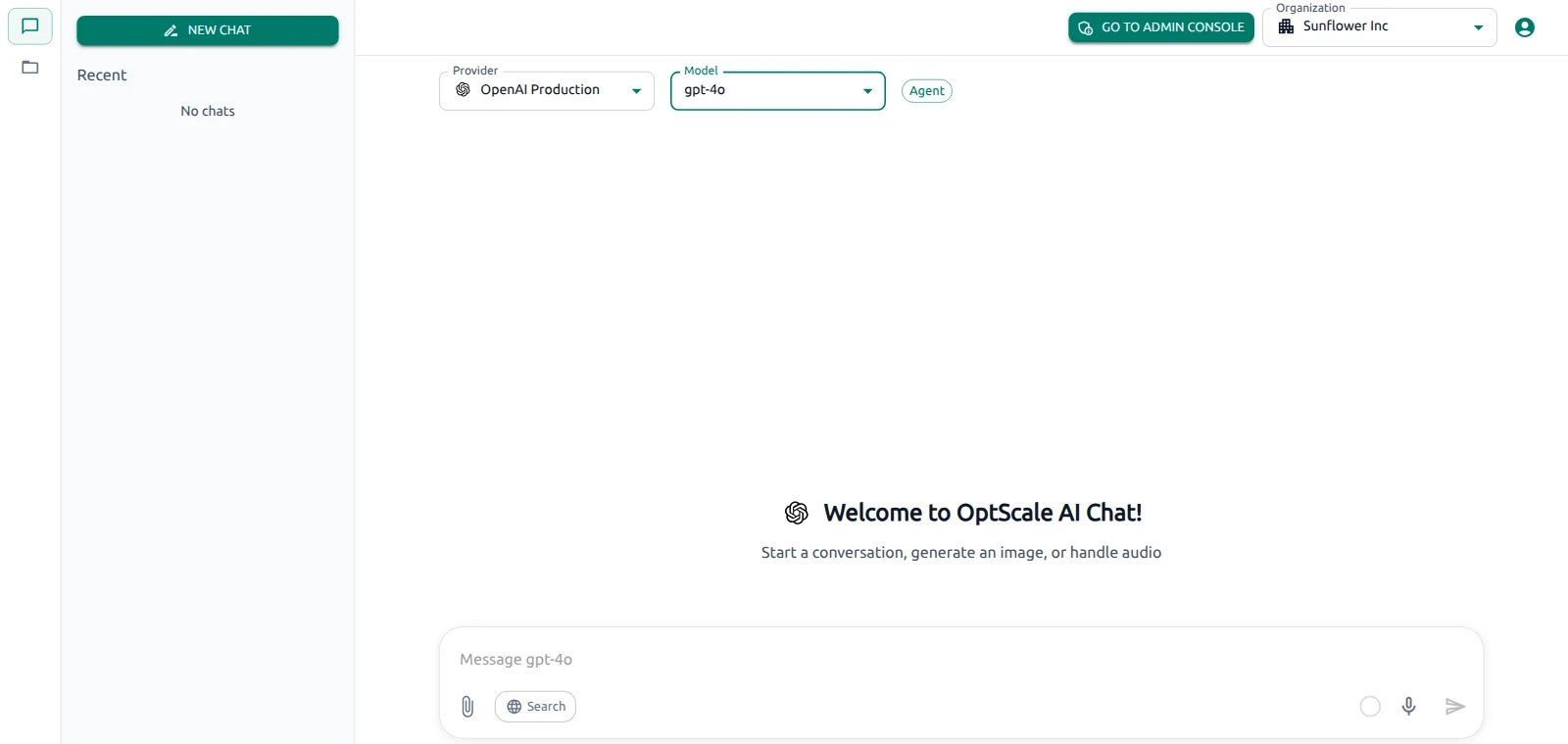
Use NEW CHAT to start a conversation. The message composer provides controls for attachments, web access, voice input, and message submission.
Chat uses the provider catalog, access controls, routing configuration, and governance policies defined in the Admin Console. It does not replace administrative configuration or organization governance.
For details about the Chat workspace, see Interface Overview.
AI request flow#
At a high level, AI requests move through shared platform services:
-
Ingress — A prompt or API payload enters with organization context and an authenticated principal.
-
Policy and guardrail evaluation — Organization rules and attached guardrails run at the configured stage.
-
Extensions — Optional MCP servers provide approved tools when the workflow requires them.
-
Context compression (when enabled) — The payload is optimized before the provider call. See Context compression.
-
Provider call — The request is sent to the vendor API base using stored credentials.
-
Observability — Token usage, cost, and trace records are persisted for dashboards and troubleshooting.
Failures at any step are surfaced in Analytics → Traces and in provider or router health indicators under Config → Providers.
External clients such as OpenCode and Cursor use the same OpenAI-compatible LLM proxy as Chat and API traffic. See Connect OpenCode and Connect Cursor. For migrating existing SDK or proxy integrations, see Switch to OptScale AI Gateway.
Access principles#
Organization roles#
OptScale AI provides predefined organization roles to manage user permissions and responsibilities.
| Role | Access |
|---|---|
| Organization manager | Full administrative access across the organization. Can manage resources, invite users, and change configuration. |
| Member | Can use Chat and its available features. Cannot access the Admin Console or manage organization resources. |
Notes and restrictions#
- A Member accesses Chat directly and does not use the Admin Console.
- Only an Organization manager can send invitations.
- Users cannot invite themselves.
-
Each invitation assigns one role. On the Invite Users page, Add role selects a single role for that invite.
-
Invited users receive an email:
- If they are already registered, they receive a notification.
- If they are not yet registered, they receive a signup link and obtain the assigned role after completing registration.
Providers and routers#
- Providers — Vendor endpoints, for example
openai/gpt-4o, with connection settings, health checks, usage limits, and tags. - Routers — Routing rules that select a provider and model based on match conditions, priority, and optional fallbacks when a preferred target is unavailable.
When you need one provider vs several#
One provider is enough when you use a single vendor endpoint, for example one OpenAI account or one Ollama host.
Add additional provider rows when you need:
- A second vendor, for example OpenAI and Anthropic.
- Separate credentials or base URLs for production and development.
- A backup connection for routing rule fallbacks.
Use a unique Name for each provider row, even when the vendor is the same.
When you need a routing rule#
You do not need a routing rule when requests should always use the provider and model selected by the user or application. Users choose a provider and model in Chat; API clients specify the model in their requests. The gateway sends the request to that selected provider and model, subject to Credentials & Roles — Allowed providers and enabled models.
If no routing rule matches, the gateway keeps the provider and model selected by the user or specified by the API client.
Create a routing rule when you need to:
- Send matching traffic to a preferred provider and model, with an automatic fallback if the primary target fails.
- Split traffic across multiple provider and model pairs using weights for load balancing.
- Restrict routing by scope, such as organization, team, or employee, or by request attributes such as model, request type, or team.
- Route specific workloads without changing application code.
Routing rules apply to Chat and API traffic through the AI Gateway when their scope, conditions, and priority match the request.
For screen layout and configuration steps, see Config → Providers and Routing Rules.
MCP in the platform#
MCP (Model Context Protocol) servers connect OptScale AI to external tools and data sources. Administrators configure transport, authentication, health, and team access so approved tools can be used by Chat or API workloads during a session.
For more information, see:
- What are MCP tools? — Learn how MCP tools and servers work.
- When to use an MCP server — Review when MCP is useful.
- Add an MCP server — Configure a preset or custom MCP server.
- Tools tab — Enable discovered tools and control auto-execution.
- Verify MCP server and Troubleshooting — Confirm availability and resolve common issues.
Policies and guardrails#
Policies define when and how traffic is evaluated. Guardrails are reusable controls linked to policies so they run when the corresponding policy conditions are met.
- Policies — Conditional rules that control when and how requests are evaluated, including stages, sampling, timeouts, request types, and other matching conditions.
- Guardrails — Reusable controls linked to policies at a configured evaluation stage.
Policies and guardrails are configured under Config → Policies & Guardrails in the Admin Console. Enforcement applies to Chat and API traffic according to the configured scope.
For an overview and configuration workflow, see Config → Policies & Guardrails.
For detailed procedures, see:
- Guardrails, including guardrail types and threshold configuration.
- Policies.
- Common use cases.
- Policy and Guardrail Limits.
- End-to-end examples.
Tracing and observability#
Traces capture the request lifecycle for debugging and troubleshooting.
Usage and Cost and Home aggregate token usage, spend, and provider activity to help teams monitor platform usage and costs.
Optimizations measures savings from cache reads, prompt compression, and memory retrieval. See Use Cases — Measure optimization savings and Analytics → Optimizations.
For dashboard scenarios, see Use Cases — Monitor platform health. For details about summary cards, filters, and the request trace table, see Analytics → Traces.
Administrators can use these views after setup to verify that Chat and API clients behave as expected. See First Steps for the initial configuration path.
See also#
- Core Concepts — Platform capabilities and terminology.
- Admin Console Overview — Admin Console screen map and recommended setup order.
- External Tools — Connect OpenCode, Cursor, Claude, Codex, and VS Code.
- Interface Overview — Chat workspace for end users.