Interface Overview#
OptScale AI Chat is the primary workspace for interacting with AI models, tools, and other resources available within an organization.
Open Chat at https://<OptScale AI host>/chat. Organization administrators can also open it from the Admin Console through How to Use → Chat.
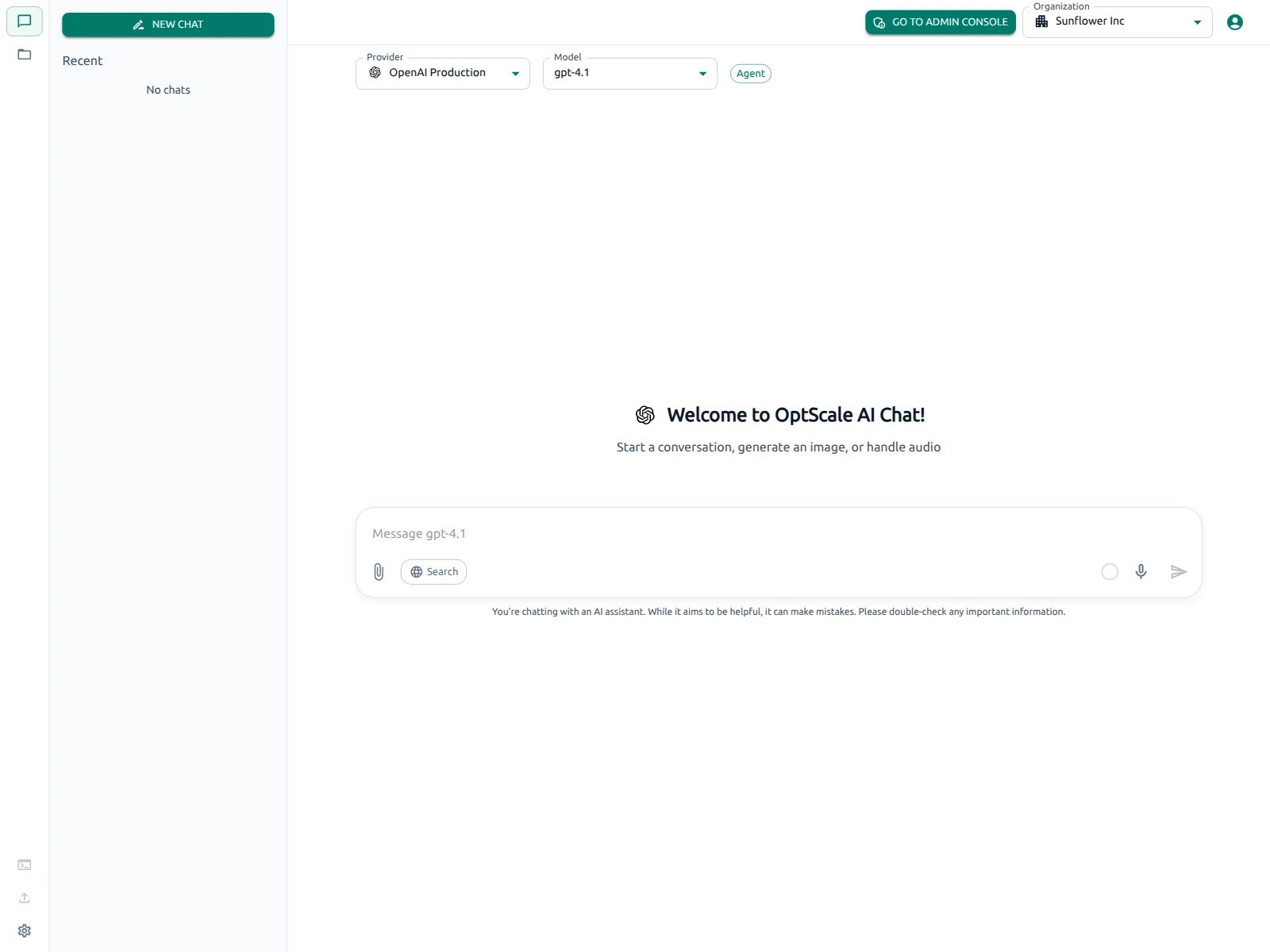
The Chat interface consists of three main areas:
- Top bar — Select the active Organization, Provider, and Model.
- Left sidebar — Access chats, projects, external tool connection details, chat import, and settings.
- Chat area — View the active conversation and send messages, files, and other supported input.
Together, these areas define the active AI context, provide access to conversation and workspace management, and support interaction with the selected model.
The resources and capabilities available in Chat depend on the selected organization, provider, model, and applicable organization policies. If an expected provider, model, or feature is unavailable, contact your organization administrator.
Organization configuration is managed in the Admin Console.
Top bar#
Use the top bar to select the context for the Chat session:
- Organization — Select the organization whose resources and policies apply.
- Provider — Select an available AI provider.
- Model — Select a model available through the selected provider.
These selections define the active context for the Chat session. The selected organization determines which providers, models, projects, and governed resources are available, while the selected provider and model determine which model handles the conversation.
Left sidebar#
Use the left sidebar to access the main Chat features:
- Chats — Start conversations and access conversation history.
- Projects — Organize related conversations into project workspaces.
- Connect this model to external tools — Retrieve connection values for using the selected model in compatible external clients.
- Import chats — Import conversation history from supported assistants.
- Settings — Manage Chat preferences, account information, and data controls.
Chats#
The Chats section provides access to current and previous conversations and serves as the main conversation history for Chat.
Use NEW CHAT to start a conversation. The actions menu (⋯) provides options such as pinning, renaming, moving, duplicating, or deleting a conversation.
Available actions may vary depending on whether the conversation belongs to a project.
For step-by-step instructions, see Manage Chats and Projects.
Projects#
Use Projects to group related conversations into dedicated workspaces.
From this section, create projects, start project conversations, and manage existing projects and conversations.
For instructions on creating projects and moving conversations between them, see Manage Chats and Projects.
Connect this model to external tools#
Use Connect this model to external tools to retrieve the connection values required by compatible external clients for the currently selected organization, provider, and model.
The dialog provides:
- Base URL — Endpoint used by the external client to send requests through OptScale AI.
- API Key — Connection credential used to authenticate requests.
- Model Name — Model identifier to specify in the external client configuration.
For setup instructions, see External Tools.
Import chats#
Use Import chats to bring existing conversation history from supported third-party assistants into OptScale AI Chat.
Imported conversations become part of the Chat history. New messages use the provider, model, and governance settings currently configured in OptScale AI.
For supported formats and vendor-specific export instructions, see Migrate Chat History.
Settings#
The Settings dialog includes:
- General — Chat behavior and message input preferences.
- Organization — Active organization information.
- User — User account information.
- Team — Assigned team information, when available.
- Data Controls — Import chats, export conversation data, or clear chat history.
For administrative organization settings, use the Admin Console.
Chat area#
The main Chat area displays the active conversation and the message composer. This is where prompts are sent, responses are displayed, and supported tools or multimodal features are used.
The available controls and capabilities depend on the selected provider, model, and organization policies.
Depending on the selected provider, model, and organization configuration, the Chat area may support:
- File attachments — Add supported files to a conversation.
- Web search — Search the web when available.
- Voice features — Provide voice input or listen to responses when supported.
- Image generation — Generate images with compatible models.
- Audio workflows — Process or generate audio with compatible models.