Providers#
Open Config → Providers to connect and manage AI providers used by Chat and API requests.
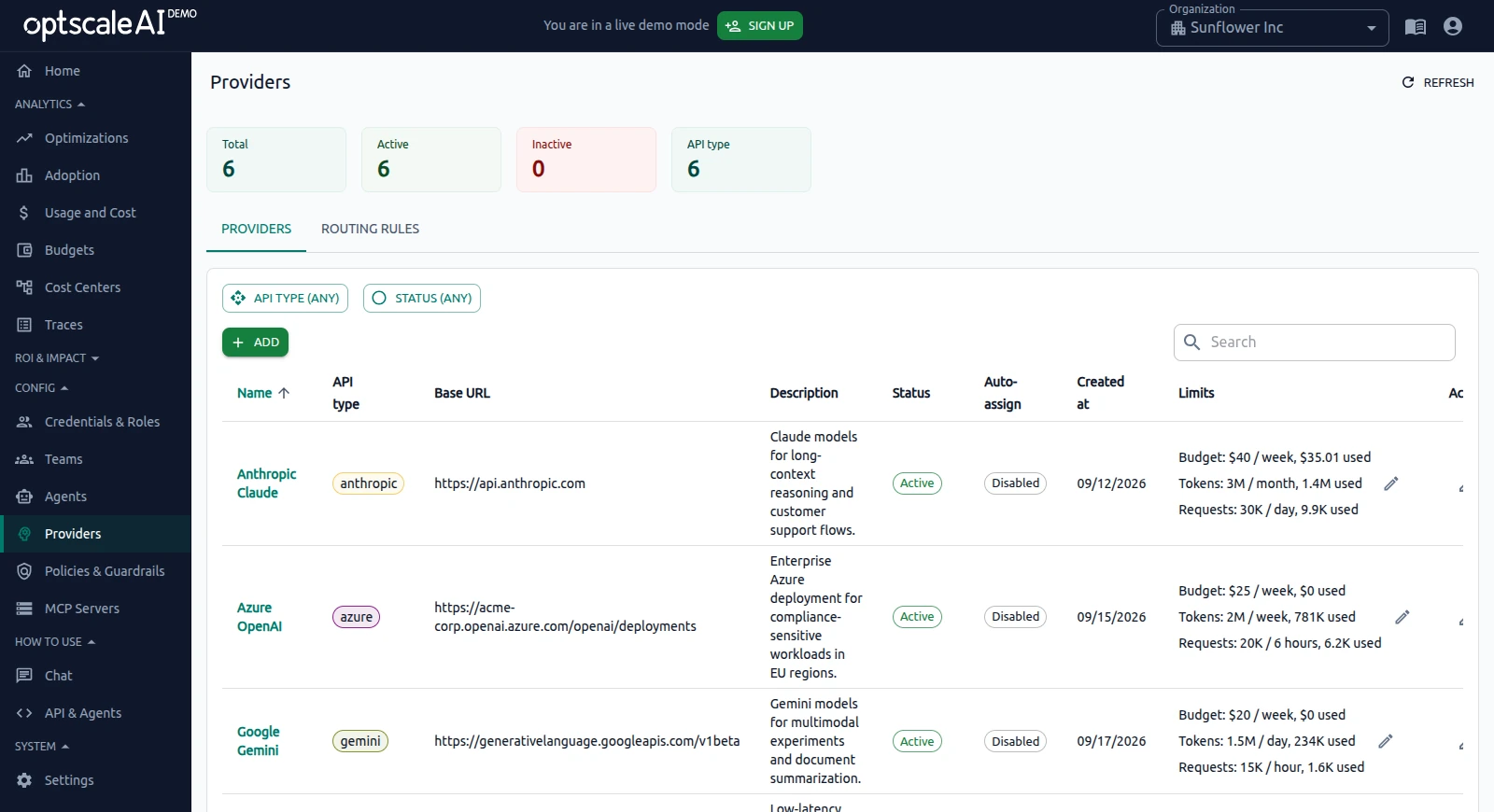
The page contains two tabs:
- Providers — Add provider connections, enable models, configure limits, and manage provider access.
- Routing Rules — Define how matching requests are routed across providers and models.
For advanced routing scenarios, see Routing Rules and Routing Best Practices.
After configuring a provider, verify the setup with a Chat or API request and inspect Traces if needed.
Overview#
What is a provider?#
A provider is a connection between OptScale AI and an external AI service. It stores the information required to reach that service, such as authentication credentials, connection settings, and the models the service exposes.
Each provider is a single connection to a specific service or deployment. For example, you can configure providers for OpenAI, Azure OpenAI, Anthropic, Google Vertex AI, Amazon Bedrock, Ollama, or other supported API types.
Multiple providers can exist in the same organization. Use them to combine vendors, separate production and development, use different regions, or route by cost, performance, or availability. See When to add multiple providers.
Supported API types#
When you add a provider, select its API type on the add form. Available API types include commercial AI APIs, cloud AI platforms, and self-hosted inference endpoints.
The providers available to a user depend on the connections configured for the organization and the user's provider access.
Provider connection and models#
A provider connection registers how OptScale AI reaches a vendor (API type, key, base URL). After you save, the platform discovers models for that connection on the provider detail page.
Saving the provider form alone does not expose models in Chat. Enable the models, then grant access on the add form or in Credentials & Roles. See Add and configure a provider.
When to add multiple providers#
One provider is enough for a single vendor endpoint (for example one OpenAI account or one Ollama host).
Add additional provider rows when you need:
- A second vendor (for example OpenAI and Anthropic).
- Separate credentials or base URLs for production vs development.
- A backup connection for routing rule fallbacks.
Use a unique Name per row even when the vendor is the same.
Add and configure a provider#
A provider is ready for use after the connection is active, required models are enabled, and access is configured.
- Add provider — Create the provider connection and wait until its status becomes Active.
- Enable models — Enable the models on the provider. Disabled models stay on the detail page but are not selectable.
- Configure access — Assign the provider to the users who may use it, on the add form or later in Credentials & Roles — Allowed providers.
- Optional: configure limits or routing — Add provider limits or routing rules when you need quotas, fallback, or weighted distribution. Routing rules do not bypass Credentials & Roles or other access controls.
- Verify — Send a Chat or API request and confirm the expected provider and model in Traces.
A request can use a provider only when the provider is Active, the selected model is enabled, and the requesting user has access to the provider.
Before you begin#
Complete these checks before you open the add form:
- An organization is selected in the header.
- You have permission to manage providers for that organization.
Add provider#
- In the Admin Console, open Config → Providers.
- On the Providers tab, click + ADD.
-
Complete the provider form:
- Name — A unique name for this provider. Use different names for multiple configurations of the same vendor (for example, OpenAI – Production and OpenAI – Development).
- API type — Select the AI provider integration that matches the service you want to connect. When you select an API type, OptScale AI automatically populates the Base URL field with the provider's default endpoint. The sidebar also displays Where to get your API key, linking to provider-specific documentation that explains how to obtain the required API key. See Supported API types for the complete list of supported integrations.
- API key — The credential used to authenticate with the provider. Leave this field empty only if the endpoint does not require authentication.
- Base URL — The provider endpoint URL used for outbound requests (for example,
https://api.your-provider.com). - Description — Optional notes for administrators. Markdown is supported.
- Insecure — Disable SSL certificate verification for this provider. Enable this option only for trusted internal or test endpoints.
- Assign to new users automatically — Automatically adds this provider to Allowed providers for employees who join the organization after the provider is saved.
- Teams, Employees, Agents — Optional. Grant access immediately by assigning the provider to one or more teams, employees, or agents. Alternatively, configure access later in Credentials & Roles — Allowed providers.
-
Click SAVE and wait until the provider status becomes Active. If validation fails, see Troubleshooting.
-
Optional: Repeat these steps to add additional providers for different vendors or environments. See When to add multiple providers.
Enable models#
Use the Enabled column in Available Models to control which models from a provider are offered in Chat, routing rules, and API requests.
1. Open Config → Providers, select the Providers tab, and click a provider name to open its detail page.
2. In the Available Models section at the bottom of the page, locate the model (use Search if needed).
3. Turn the model on or off using one of the following options:
- Individual model — Use the Enabled toggle in the model row.
- All models — Use the Enabled toggle in the column header to enable or disable every model in the table at once.
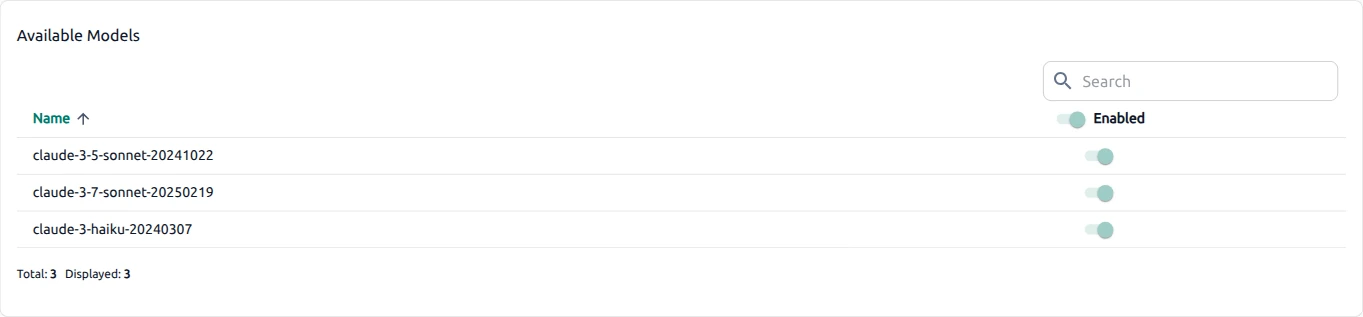
Disabled models remain listed on the provider detail page but are not selectable elsewhere in the platform. Users can access enabled models only when the provider is also assigned through Allowed providers in Credentials & Roles.
Configure access#
If access was not assigned on the provider form, open Config → Credentials & Roles and configure Allowed providers for each user who needs access to the provider.
Verify provider#
Verify that the provider is configured correctly and can process requests end to end:
-
Open Config → Providers → Providers and verify that the provider status is Active.
-
Open the provider detail page and verify that the required models are listed under Available Models and enabled.
-
Navigate to Config → Credentials & Roles. Find the test user and review the Allowed providers column. Verify that the provider is listed for the user, or that the user has access through Teams, Employees, or Agents configured when the provider was created.
-
Ask the test user to sign in to Chat using their credentials. Open the Chat URL for your deployment. Verify that the user can select the provider and one of its enabled models, then successfully complete a test request.
-
Navigate to Analytics → Traces. Open the test request and verify that the expected Provider and Model appear in Request details.
For an introduction to the initial setup, see First Steps — Add your first provider.
Manage providers#
The Providers tab lists connections, Active status, limits, and row actions. Click a provider Name to open its detail page.
Provider details#
The provider detail page contains:
- Summary — Provider name, API type, status, Base URL, and description. EDIT (to modify or delete the provider) and REFRESH (to reload page data) are available.
- Limits — Budget, token, and request quotas with reset intervals, current usage, and last/next reset dates. Click the
 pencil icon next to Limits to edit them. See Configure provider limits.
 - Available Models — Discovered models with Name, Created at, and an Enabled toggle. Use Search to filter by name. To turn models on or off, see Enable models.
Configure limits#
Per-provider Limits control budget spend, token volume, and API request count for traffic routed through a provider connection. Limits can be edited from the Providers tab or the provider detail page.
1. Open Config → Providers and select the Providers tab.
2. Start editing using either option:
-
Provider detail page — Click a provider Name to open its detail page, then click the
pencil icon next to the Limits caption. -
Providers table — In the Limits column for the provider row, click the
pencil icon.
3. In the Edit limits form, configure any combination of the following limits:
- Budget — Set the Budget limit and Budget reset duration.
- Tokens — Set the Token limit and Token reset duration.
- Requests — Set the Request limit and Request reset duration.
4. Click SAVE to apply the limits, or CANCEL to discard your changes.
5. Optional: click CLEAR LIMITS to remove all configured quotas for the provider.
Edit provider#
1. Open the provider for editing using one of the following options:
- On the Providers tab, in the Actions column of the provider row, click the Edit icon.
- On the provider detail page, click EDIT.
2. Review the pre-populated configuration and update the editable fields as needed.
3. Click SAVE to apply the changes.
Optional actions:
-
Click CANCEL to return without saving changes.
-
Use DELETE to remove the provider. See Delete provider for step-by-step instructions.
Changes can affect which models are available in Chat after the provider is refreshed. To make the provider available to users, verify that it is assigned through Allowed providers in Credentials & Roles.
Delete provider#
1. Open Config → Providers and select the Providers tab.
2. Remove the provider using one of the following options:
-
On the Providers tab, in the Actions column of the provider row, click the
 Delete icon, or
 -
Click the provider name to open the detail page, click EDIT, then click DELETE on the edit form.
3. Confirm the deletion when prompted.
The provider is removed from the organization and is no longer available for Chat, routing rules, or Credentials & Roles assignments.
Troubleshooting#
Provider does not become Active
- Verify the API key is valid and has vendor-side permissions for the models you plan to use.
- Verify the Base URL matches vendor documentation (scheme, host, port, and path).
- Confirm outbound network access from OptScale AI to the vendor (corporate proxy, firewall, DNS).
- For self-hosted endpoints, try Insecure only when using HTTP or a private CA on a trusted network.
- Check clock skew and proxy TLS interception on restricted networks.
No models on the detail page
- Click REFRESH on the provider detail page after save.
- Confirm the vendor account exposes models at the configured Base URL.
- Re-save the provider after correcting API type or Base URL.
Provider Active but missing in Chat
- Enable models on the provider detail page.
- Assign the provider on the add form or in Allowed providers for that user—organization registration alone is not enough.
- Confirm the user has the correct organization selected.
Models enabled but request fails
- Inspect the failure in Traces.
- Check provider limits for exhausted budget, token, or request quotas.
- Confirm policies and guardrails are not blocking the traffic.