Traces#
Open Analytics → Traces to inspect individual AI requests and investigate request-level behavior that is not visible in aggregate analytics.
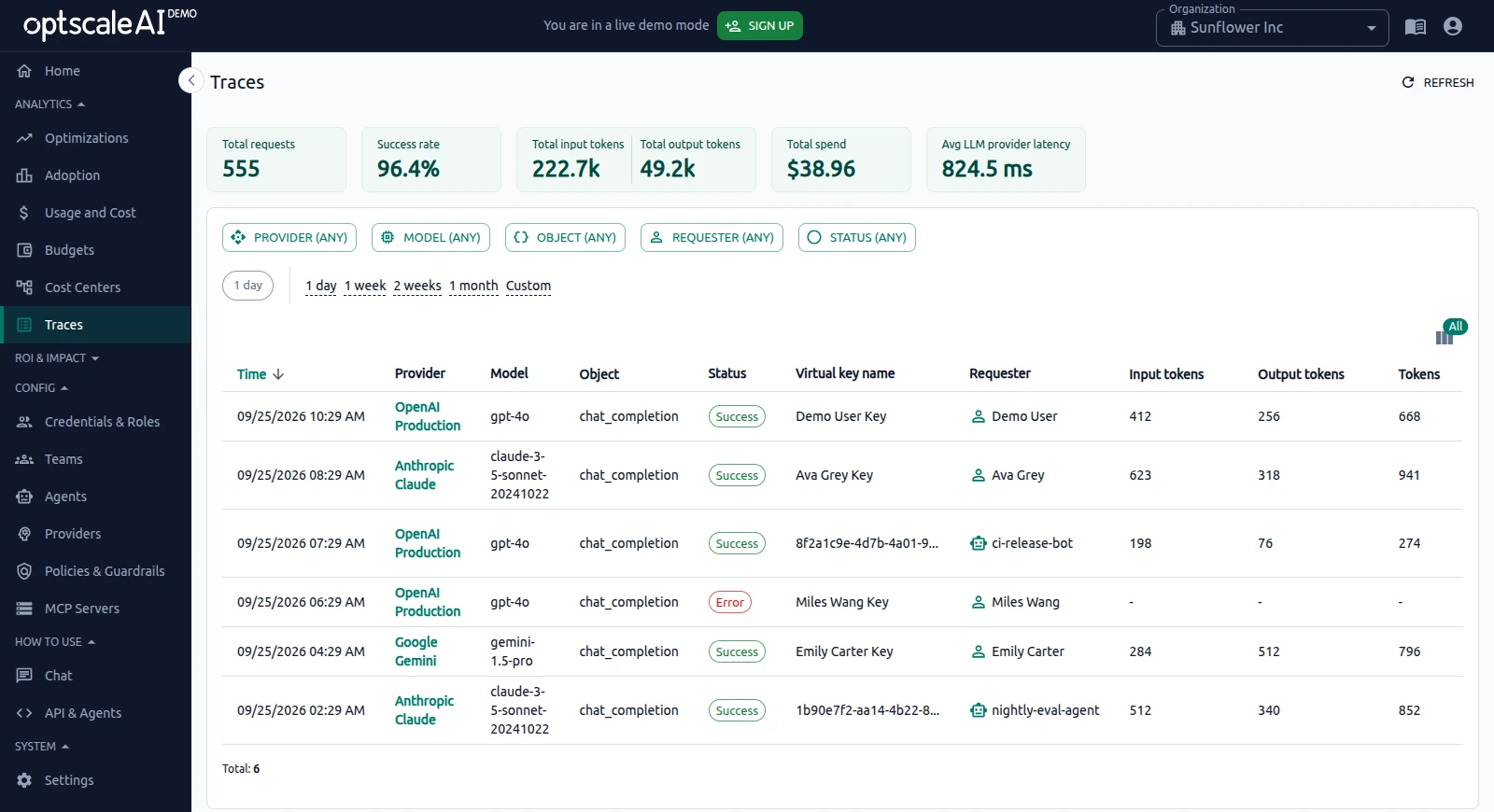
Use traces to investigate failures, latency, token usage, cost, routing, and captured request or response data for a specific AI request.
For organization-wide trends, see Usage and Cost. For dashboard monitoring, see Home.
Trace list#
The Traces view lists individual AI requests and supports filtering by available request attributes such as provider, model, and user.
Use filters to narrow the request list, then open a trace to inspect its details.
Trace details#
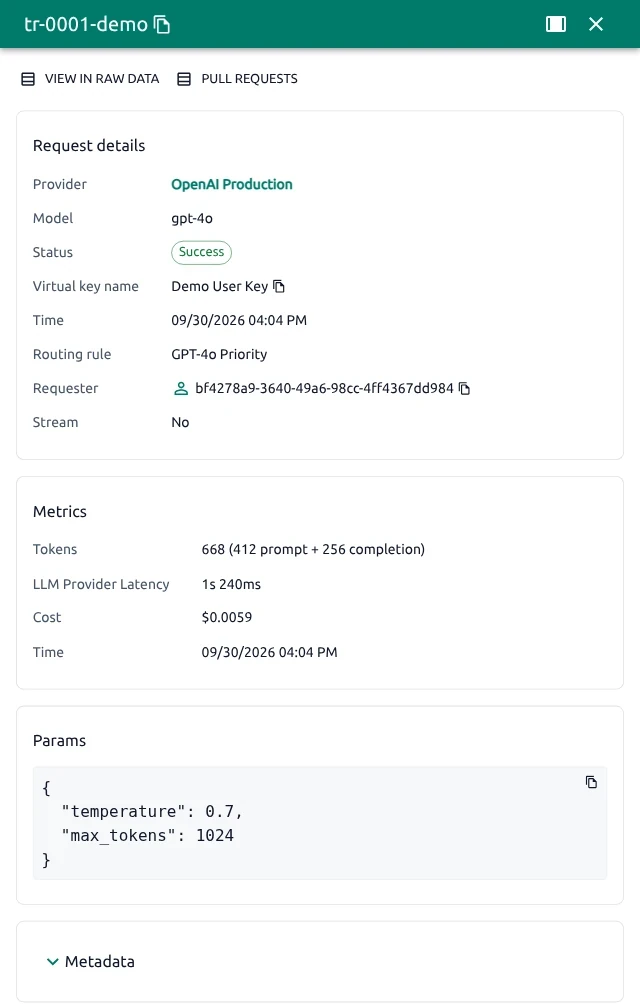
The trace detail panel shows the trace UUID, Provider, Model, Status, and Time, together with request metadata, metrics, captured request and response data, and request parameters.
Request details#
The Request details section displays metadata associated with the request, including the provider, full model identifier, applied routing rule, initiating user or principal, and whether streaming was enabled.
Use this information to verify which provider and model handled the request and whether routing produced the expected destination.
Metrics#
The Metrics section shows request-level performance and usage measurements such as:
- Total token usage.
- Prompt and completion token usage.
- End-to-end latency.
- Request cost.
- Request timestamp.
These metrics help correlate individual requests with trends observed in Usage and Cost.
Request and response#
The Request & Response section displays captured prompt and completion data when request and response bodies are available for the deployment.
If captured data is unavailable, the panel displays No data.
Params#
The Params section displays the JSON request parameters sent to the provider.
Depending on the request, the payload may include model parameters, tools, function definitions, or parameter schemas.
Use the copy control to copy the payload for debugging or support analysis.
Analyze a request#
To investigate an individual request:
- Filter the trace list by provider, model, user, or another available attribute.
- Open the matching trace.
- Review Request details to verify the provider, model, and routing information.
- Review Metrics for latency, token usage, and cost.
- Inspect Request & Response and Params when payload-level analysis is required.
See also#
- Usage and Cost — Compare request-level details with aggregate usage and cost trends.
- Home — Monitor organization-wide metrics and trends.
- Routing Rules — Review how requests are routed between providers and models.
- Providers — Review provider and model configuration.