Connect Cursor#
Connect Cursor to OptScale AI so chats and agent workflows use models available through your OptScale AI organization.
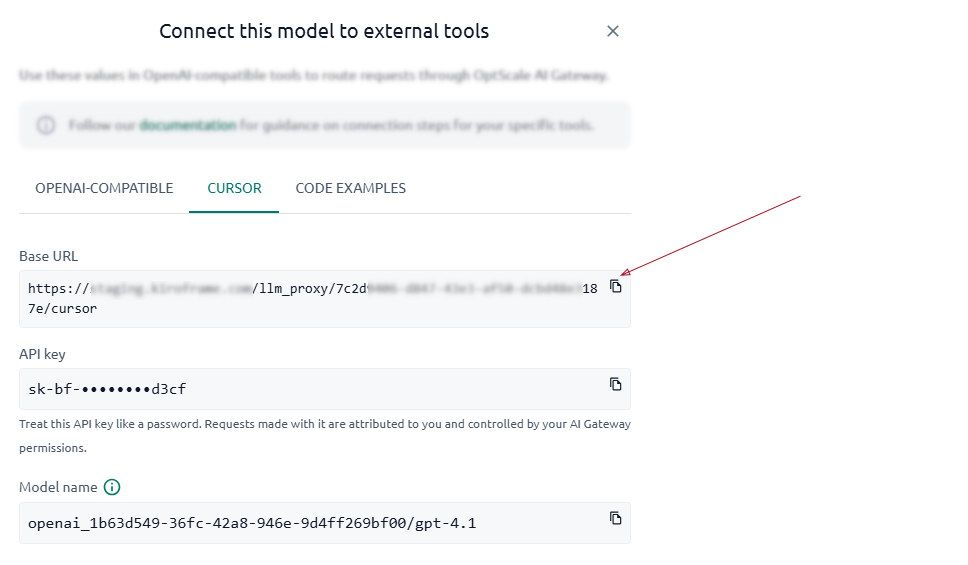
In Chat, copy Base URL, API key, and Model name from Get connection values from Chat before configuring Cursor.
For shared model naming rules and limitations, see External Tools overview.
Prerequisites#
Ensure the following prerequisites are met before configuring Cursor:
- An organization exists and at least one Active provider is configured.
- Allowed providers are assigned to the user connecting Cursor to OptScale AI.
- The OptScale AI deployment is accessible over HTTPS with a valid TLS certificate.
- For agent workflows that use tools, select a model that supports tool execution.
Configure Cursor#
-
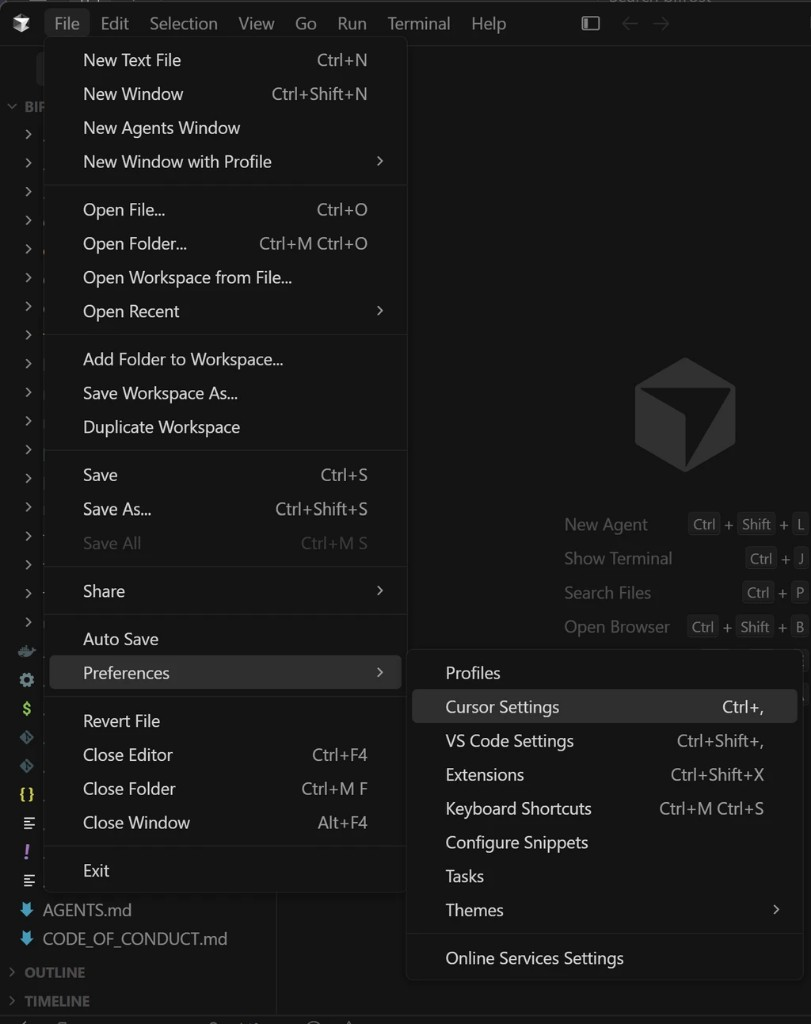
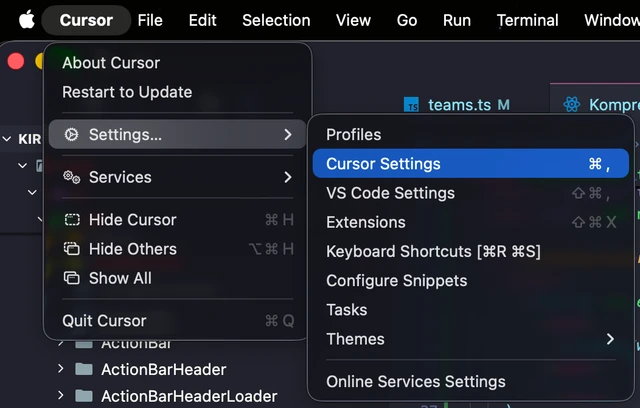
Open the Cursor Settings page:
-
For Windows and Linux: File → Preferences → Cursor Settings
-
For macOS: Cursor → Settings → Cursor Settings
-
-
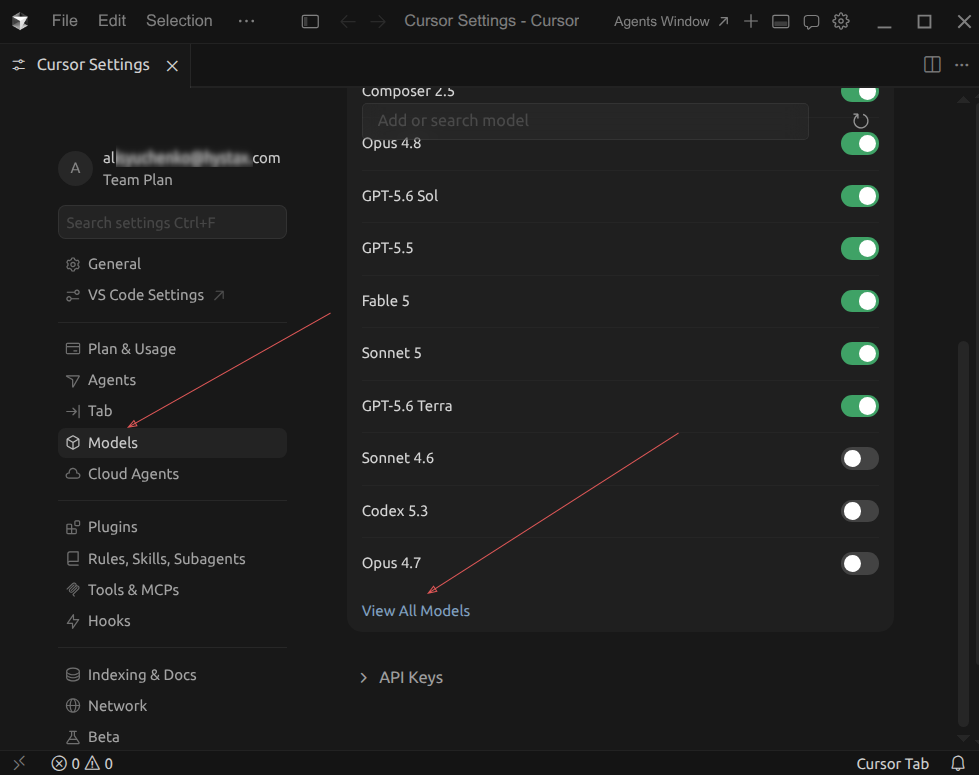
Go to Models → click View All Models.
-
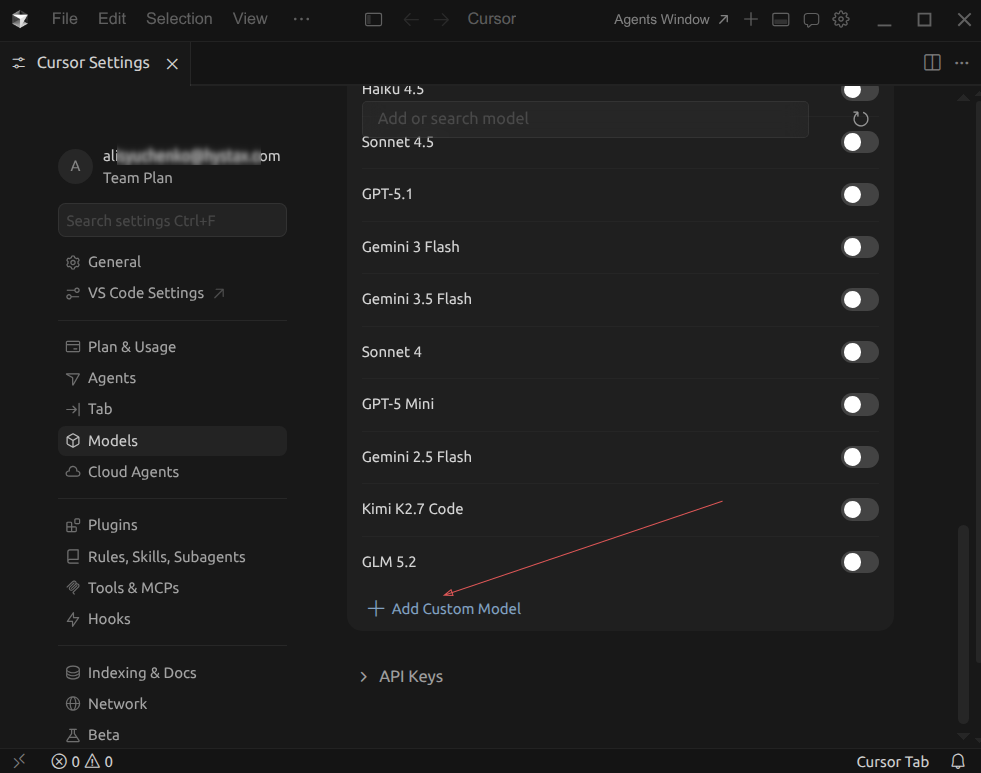
Click +Add Custom Model.
-
Add the model:
-
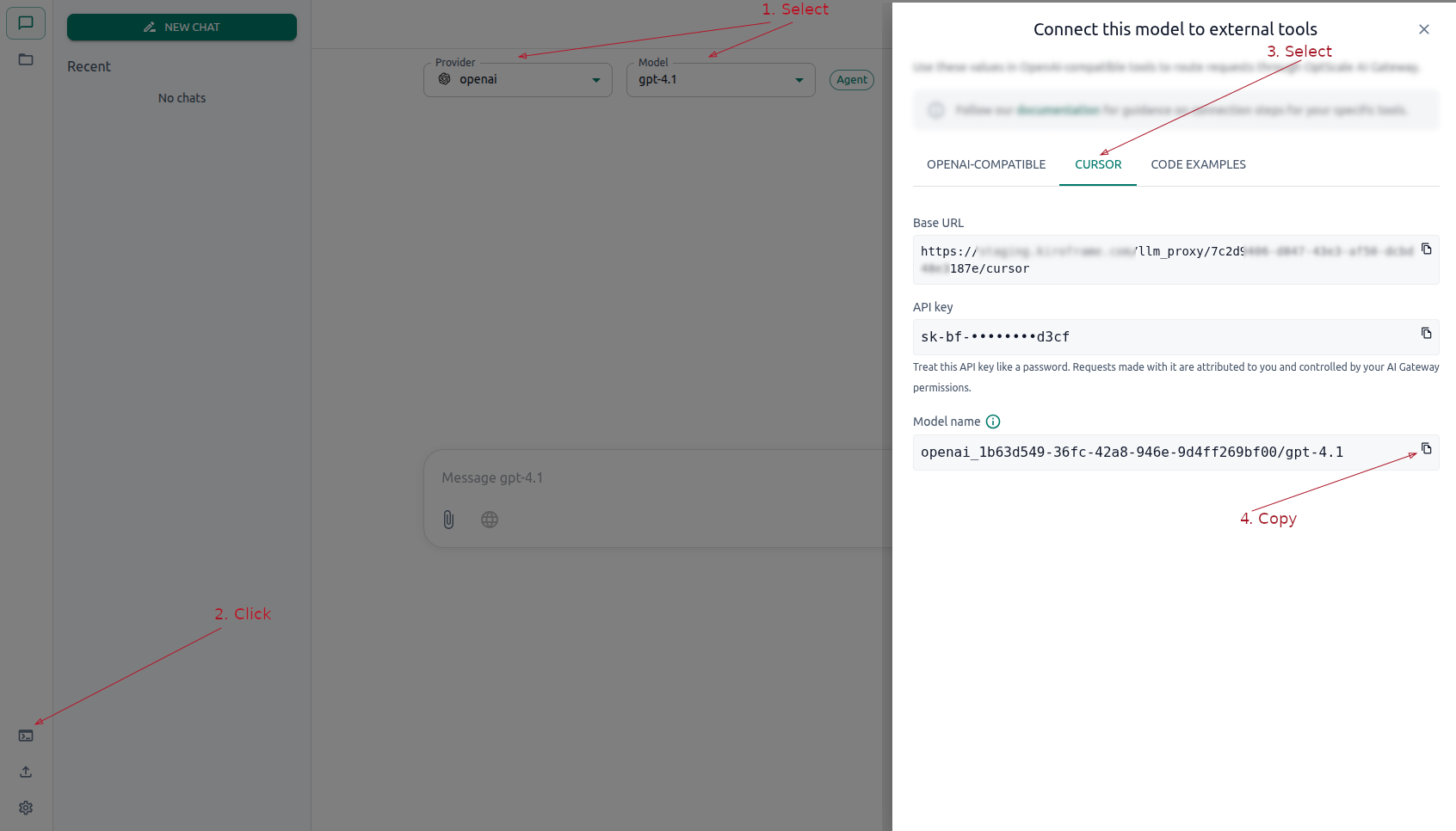
In OptScale AI Chat, select the provider and model, then open Connect this model to external tools → CURSOR and copy Model name.
-
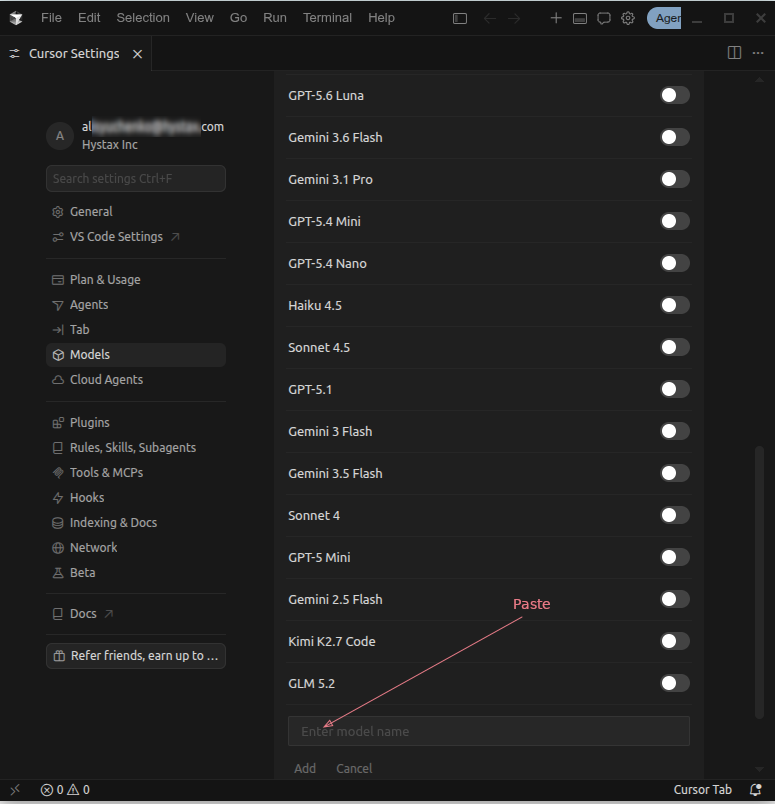
In Cursor, paste the value into Enter model name, then click Add.
-
-
Configure the API key and Base URL:
-
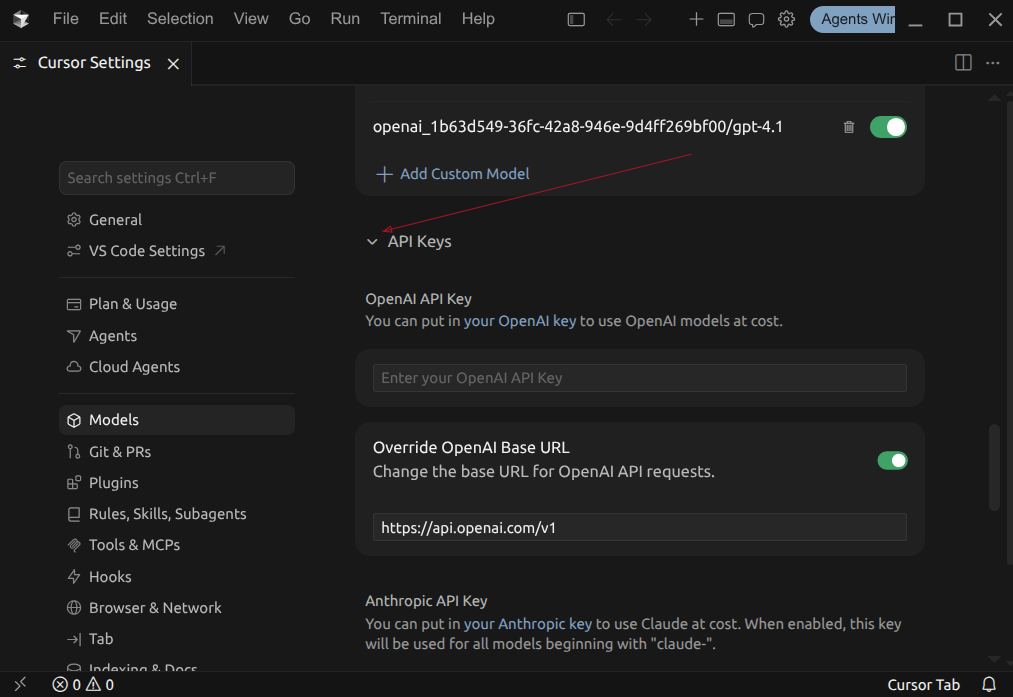
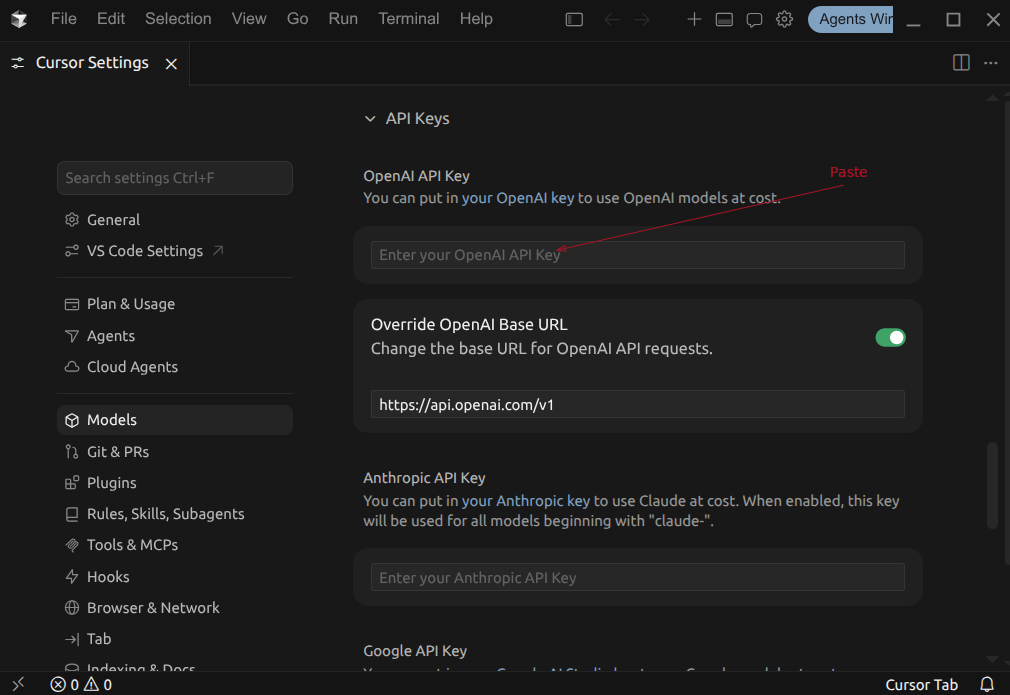
Expand API Keys in Cursor.
-
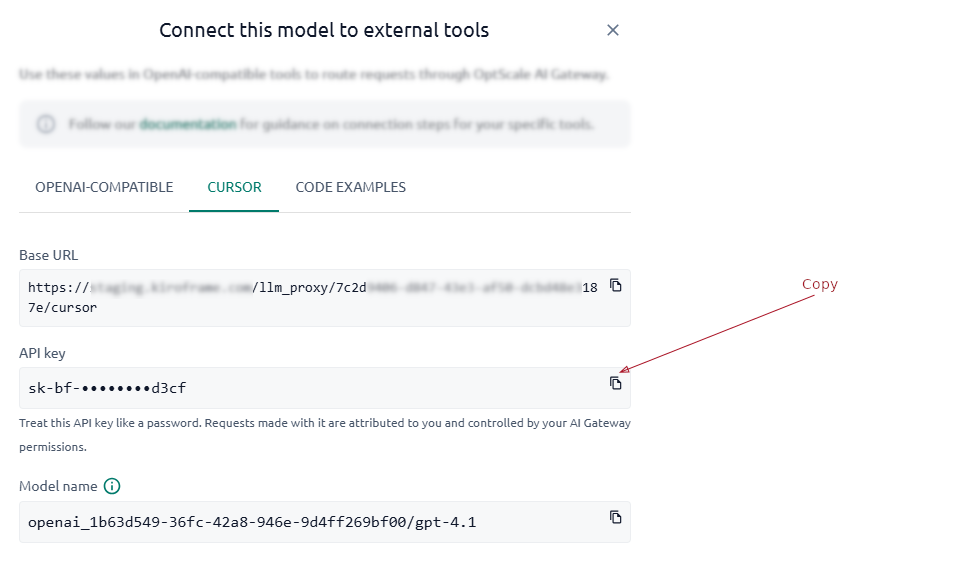
From Connect this model to external tools → CURSOR in Chat, copy API key and paste it into OpenAI API Key.
-
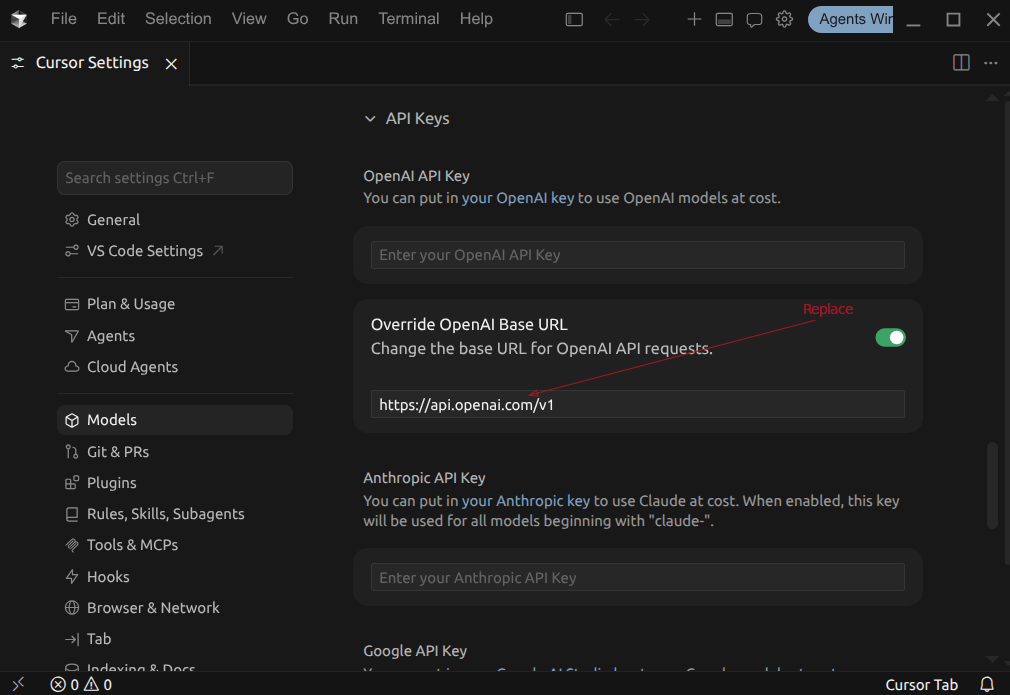
Enable Override OpenAI Base URL.
-
Copy Base URL from the same Chat dialog and replace the existing value in Override OpenAI Base URL.
-
-
Save the configuration.
The configured model is now available in Cursor chats and agent workflows.
Note
Cursor supports one OpenAI-compatible Base URL and API key configuration at a time. Changing this configuration affects the models available through that connection.
Verify the Cursor connection#
Start a Cursor chat or agent task, select one of the added models, and send the following prompt:
Reply with exactly: OptScale AI connection works.
The expected response is:
OptScale AI connection works.
In the Admin Console, open Analytics → Traces and confirm that a row appears for the selected Provider and Model. Requester is the user for whom the connection was configured.
See also#
- Get connection values from Chat — Retrieve the Base URL, API key, and model name.
- External Tools — Review shared requirements and limitations.
- Connect OpenCode — Connect OpenCode to OptScale AI.
- Analytics → Traces — Verify requests after connecting.