Usage and Cost#
Open Analytics → Usage and Cost to review AI usage, spend, token consumption, and reliability across the organization.
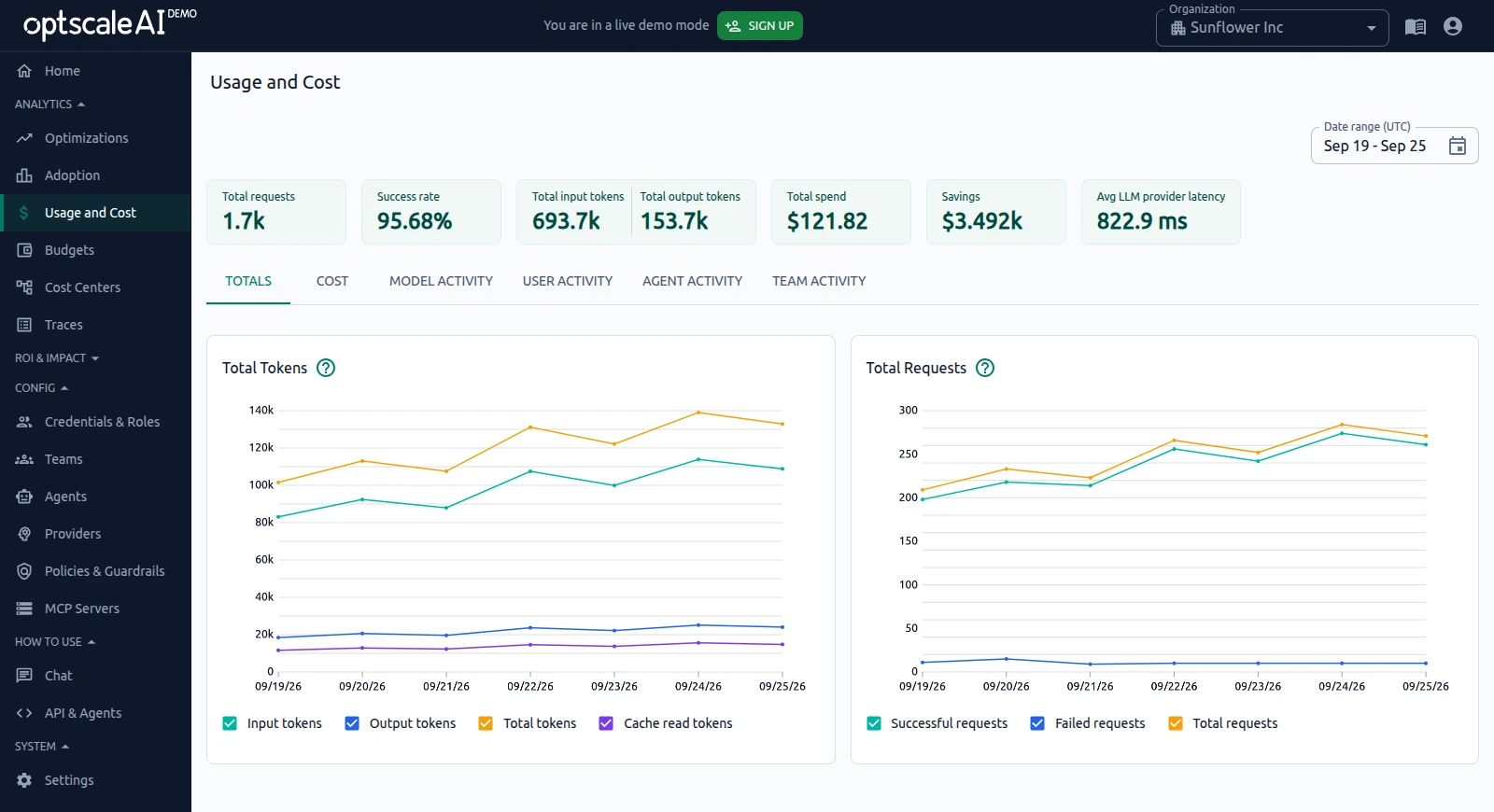
The page provides organization-wide totals, cost analysis, and scoped activity views for models, users, agents, and teams.
For scenario-based examples, see Use Cases — Analyze AI spend and usage.
Overview#
The page includes the following views:
- Totals — Overall request volume, tokens, and reliability.
- Cost — Spend and token consumption by model and user.
- Model Activity — Usage, cost, tokens, and reliability for a selected model.
- User Activity — Usage, cost, model usage, and reliability for a selected user.
- Agent Activity — Usage, cost, model distribution, and reliability for a selected agent.
- Team Activity — Usage, spend, model usage, and reliability for a selected team.
Totals#
The Totals tab provides an organization-wide view of AI activity for the selected time range.
It includes:
- Total Tokens — Input, output, total, and cache read token consumption over time.
- Total Requests — Successful, failed, and total request volume over time.
Use this view to identify usage and reliability trends before investigating specific cost drivers or entities.
For examples, see Use Cases — Analyze AI spend and usage.
Cost#
The Cost tab shows how AI spend and token consumption are distributed across the organization.
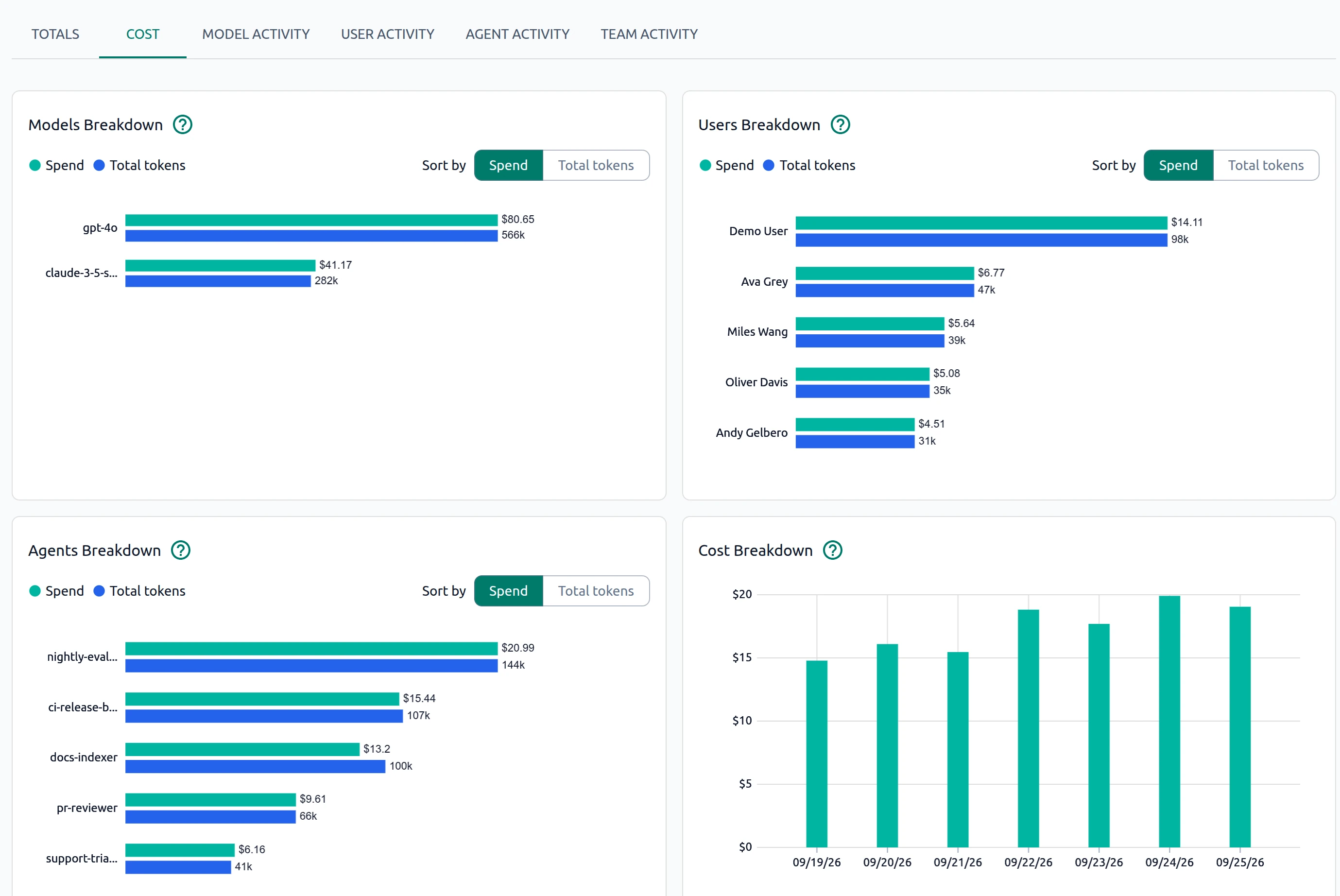
It includes:
- Cost Breakdown — Spend over time.
- Models Breakdown — Spend or token consumption by model.
- Users Breakdown — Spend or token consumption by user.
Switch between Spend and Total tokens to compare financial cost with usage volume.
For examples, see Use Cases — Analyze AI spend and usage.
Activity tabs#
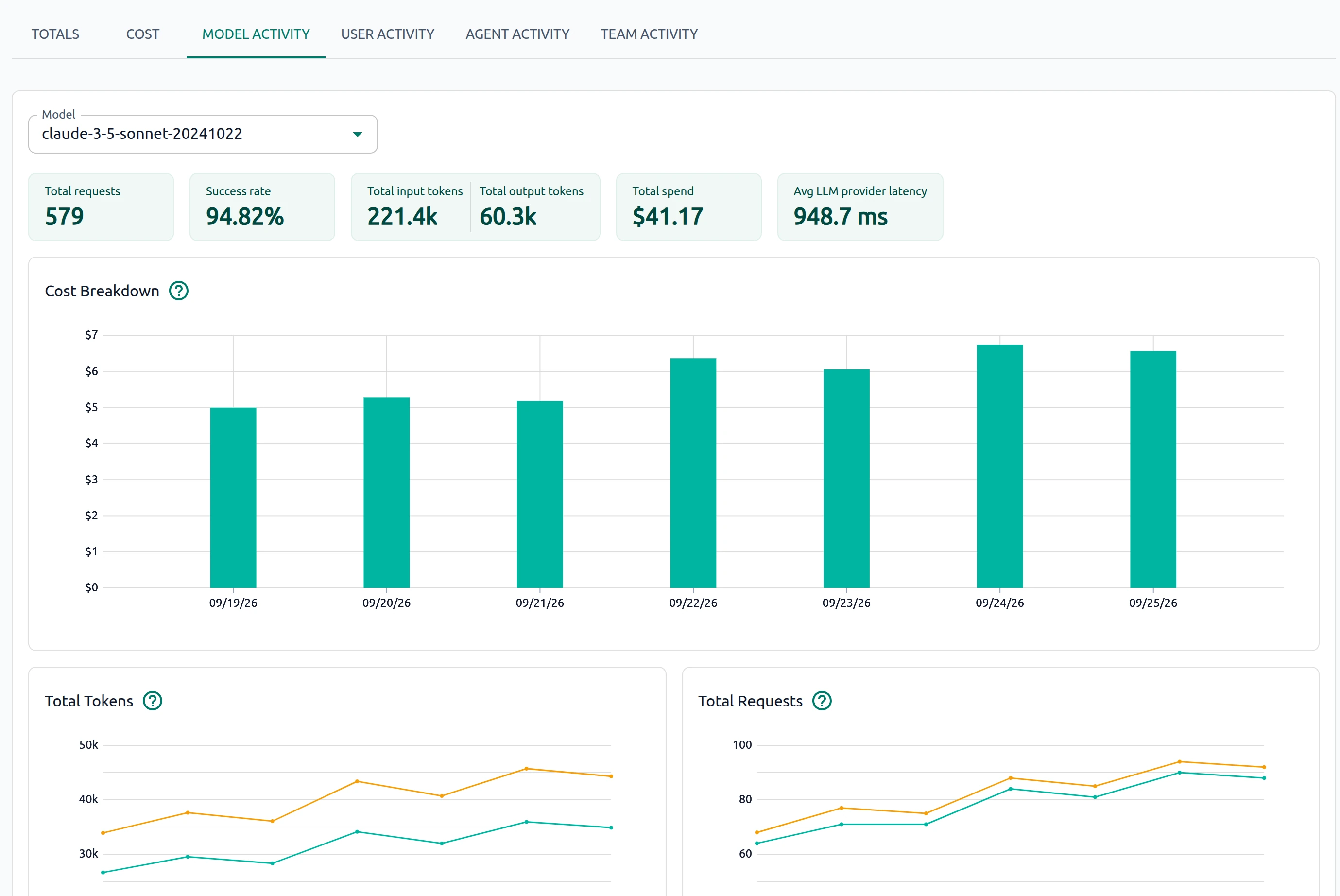
The Model Activity, User Activity, Agent Activity, and Team Activity tabs provide scoped analytics for the selected model, user, agent, or team and time range.
- Model Activity — Usage, cost, token consumption, and reliability for a selected model.
-
User Activity — Usage, cost, model usage, and reliability for a selected user.
-
Agent Activity — Usage, cost, model distribution, and reliability for a selected application or agent.
-
Team Activity — Usage, spend, model usage, and reliability for a selected team.
Select an entity from the corresponding dropdown to update the summary cards and charts.
For examples, see Use Cases — Analyze AI spend and usage.
See also#
- Home — Monitor organization-wide metrics and trends.
- Optimizations — Measure savings from cache reads and related optimizations.
- Traces — Inspect individual requests.