Skip to content

First Steps#

This guide walks you through the minimum setup to run your first AI request in OptScale AI: create an organization, connect a provider, assign allowed providers, add a guardrail, configure policies, connect MCP Servers, then use AI Chat or your application.

If you need background first, see Architecture Overview. For AIOps pages after LLM setup, see Model Training.

Create organization#

  1. Sign in to OptScale AI with an administrator account.
  2. Open the Organization selector in the header.
  3. Choose Create new organization, enter a display name.
  4. You are assigned the Organization manager role in the newly created organization and can invite other team members.
  5. Optional: invite teammates and assign them to Teams so policies can be scoped later.

For the rest of the workflow, you must have one active organization selected.

Add first provider#

Before you register your first provider, confirm that you have:

  • Permission to manage providers for the active organization.
  • Valid credentials for the vendor.

Steps:

  1. In the Admin UI, open Providers.
  2. Open the Providers tab—each row is one callable provider endpoint backed by a vendor configuration.
  3. Choose Add and fill in the required fields:

    • Name — A unique label for this configuration.
    • Provider — The vendor or integration driver from the supported list.
    • Mode — Connection or operating mode exposed for that provider.
    • API base — Base URL for outbound calls (prefilled when defaults exist).
    • API key — Secret used to authenticate to the vendor.

    Optional blocks include Tags for grouping or routing, Cache controls, and Advanced settings for vendor-specific parameters.

  4. Save and wait until validation succeeds and the entry shows Healthy. If checks fail, verify key permissions, outbound network access to the vendor, proxy requirements, and clock skew.

  5. Add additional rows only if you need more providers exposed to AI Chat or to Routers.

You now have at least one healthy provider. Optional next step: define routing (fallbacks, load balancing).

Add allowed providers#

After Add first provider, assign which Active providers your user may use. Follow Configure allowed providers in AI Access.

Add guardrail#

A guardrail is a reusable control you define once and link to policies. Use it for safety and compliance checks—such as detecting and handling personally identifiable information (PII)—before or after provider calls, depending on the Stage you choose.

  1. In the Admin UI, open Policies + Guardrails.
  2. Open the Guardrails tab and choose Add.
  3. Fill in the required fields (marked with * in the form):

    • Name — Unique label for this guardrail (for example pii-redact-input).
    • Description — Optional note for operators (what it protects and when to use it).
    • Stage — When evaluation runs in the request lifecycle (for example Input to inspect user prompts before the provider responds).
    • Type — The guardrail engine (for example PII detection and redaction). See Guardrail types for all available options.
    • Threshold — Confidence level for triggering the guardrail. See Guardrail thresholds for guidance on choosing values.
    • Policy — Action when the guardrail fires (for example Redact to mask detected entities instead of blocking the request).
    • PII fields — Which categories of PII to scan for when the type is PII-related.
  4. Optional: under Custom regexp patterns, choose + ADD PATTERN to match your own entity labels when built-in PII types are not enough. The panel shows No custom patterns until you add at least one rule.

  5. Click SAVE to create the guardrail, or CANCEL to discard changes.

Expected behavior after configuration

  • The guardrail appears on the Guardrails tab. Open it from the list to Edit the definition or review configuration on the detail page.
  • Policies using it shows 0 until you link the guardrail from a policy (Linked Guardrails on the Add Policy form or when editing an existing policy).
  • A guardrail does not enforce on traffic by itself. It runs only when linked to an Enabled policy and that policy's conditions match a request.
  • After matching traffic flows, evaluation runs at the guardrail's configured Stage; Total invocations and Violation rate on the guardrail detail page update once the guardrail executes.

Add policies#

Policies are evaluated against AI Gateway traffic. Each policy defines when it applies, how it is evaluated, and which guardrails run when it matches.

Warning

At least one linked guardrail is required before creating or configuring a policy. Create a guardrail first, then return to this step.

1. Open Policies + Guardrails in the Admin UI. 2. On the Policies tab, choose + ADD to open the Add Policy form.

3. Set Name and optional Description.

4. Use the Enabled toggle to turn enforcement on or off (disabled policies are kept but not applied).

Conditions

5. Under Conditions, define which requests this policy applies to. Conditions allow you to filter requests based on attributes such as request type, provider, model, team, and other supported fields. Policies support logical rule grouping:

  • AND — all rules in the group must match for the policy to apply.
  • OR — at least one rule in the group must match.
  • + Add rule — adds another condition to the current group.
  • + Add rule group — creates a nested group for building more advanced filtering logic.

    Nested groups can be combined to create complex policy scopes.

6. Review the CEL expression preview - verify the final condition logic.

Evaluation scope

7. Under Evaluation scope, configure:

  • Stage — Determines when the guardrail is executed during request processing (Input, Output, or Both).
  • Sampling rate — Defines what percentage of requests are evaluated by the guardrail. Reducing the sampling rate can help lower latency and reduce evaluation overhead.
  • Timeout — Specifies the maximum amount of time allowed for guardrail evaluation. If evaluation exceeds the configured timeout, the system follows the behavior defined by the Pass on timeout option.
  • Request type — Limits the guardrail to specific AI Gateway request types.
  • Pass on timeout — Defines what happens if evaluation does not complete within the configured timeout.

  • Enabled — the request proceeds even if evaluation times out.

  • Disabled — the request may be blocked or failed if evaluation does not complete in time.

Linked guardrails

8. Under Linked Guardrails, select which guardrails are associated with the policy.

A policy can include one or multiple guardrails. Only the selected guardrails are evaluated when the policy conditions match an AI Gateway request.

Each guardrail card displays:

  • Name or ID — identifier of the guardrail.
  • Type — the guardrail category or detection type.
  • Stage — when the guardrail is executed during request processing.
  • Description — additional information about the guardrail configuration.

Select Show configuration to expand and review the guardrail configuration details before linking it to the policy. This helps verify that the selected guardrail matches the intended policy behavior.

Use the checkbox next to each guardrail to include it in the policy. At least one linked guardrail is required before the policy can be created or saved.

9. Click SAVE to create the policy.

Expected behavior after configuration

  • The policy appears on the Policies tab. When Enabled, it is eligible to evaluate matching AI Gateway traffic; disabled policies are kept but not applied.
  • Requests that match Conditions and Request type enter evaluation at the configured Stage, subject to Sampling rate and Timeout settings.
  • When a request matches, linked guardrails run. Outcomes follow each guardrail's configured Policy action (for example Redact or block). If evaluation exceeds the timeout, Pass on timeout determines whether the request proceeds or fails.
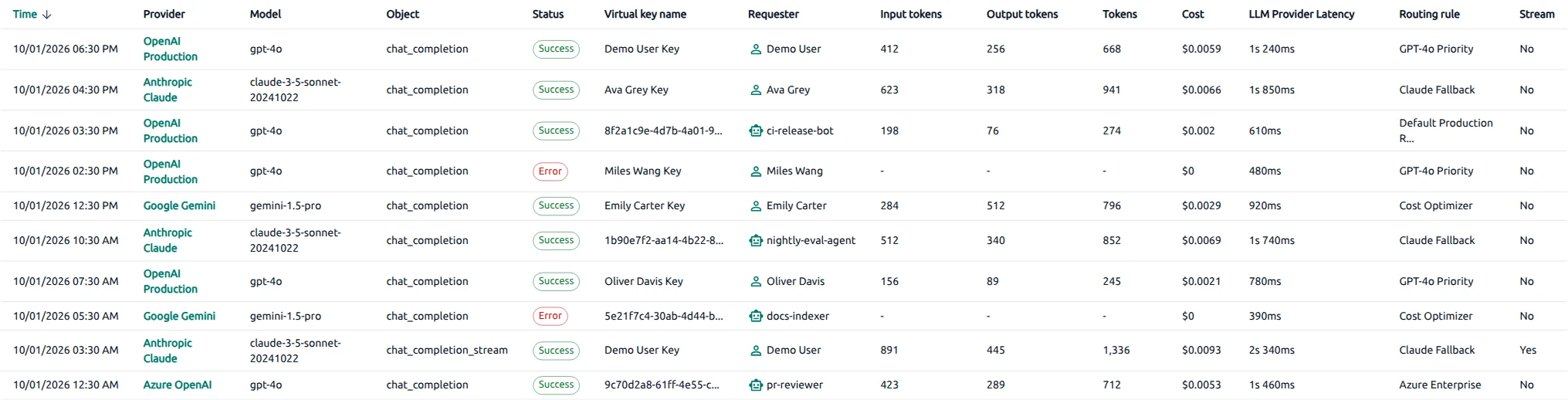
  • Requests evaluated, Match rate, Violation rate, and Guardrail invocations on the policy detail Usage statistics tab populate after traffic. Use Traces to inspect individual outcomes—see Core Services — Traces.

Tighten conditions and guardrail selection after your first successful request; keep this pass minimal so you learn baseline behavior before layering stricter governance.

For common patterns, limitations, and a full walkthrough, see Architecture Overview — Policies and guardrails (use cases, limitations, end-to-end example).

Connect MCP Servers#

MCP servers expose tools and external context to assistants through the Model Context Protocol.

  1. In the Admin UI, open MCP Servers.
  2. Click + ADD to open the Add MCP Server page.
  3. Either complete the form manually or use to start Browse MCP presets from a curated configuration.

    • Presets

      At the top of the page, click Browse MCP presets to apply a predefined configuration for common MCP providers. Filter presets by category or search by server name to quickly find the required preset. An icon, title, and description of the integration capabilities are displayed on preset cards to simplify selection. Click a card and follow instructions to automatically fill in the configuration fields.

      Warning

      Preset configurations require additional validation and customization. Review all pre-filled fields before saving, and provide any required sensitive information (for example, tokens, credentials, or API keys) manually.

    • Manual

      • Name — Unique MCP server identifier.

      • Connection settings

        Specify the following required fields:

        • Connection type — Communication method used by the server. By default, the page selects Streamable HTTP (HTTP).
        • MCP server URL — Server endpoint URL.
        • Authentication type — Authentication method used to connect to the MCP server. The default value is None.
      • Server options

        The Server options section contains operational settings and feature toggles:

        • Code mode client — Enables compatibility with code-oriented MCP workflows.
        • Ping available for health check — Allows the platform to use lightweight ping requests for server health checks. Disable this option if the MCP server does not support ping operations.
        • Allow on all virtual keys — Makes the MCP server available to all virtual keys in the organization.
        • Tool sync interval — Defines how often the platform synchronizes available tools from the MCP server.
  4. Click SAVE. Wait until the server status changes to Connected. If needed, open the server details page and test tools on the TOOLS tab.

For information about list columns, the CONNECT integration tab, and the detail or edit pages, see Core Services — MCP Servers page.

After registration, verify that the new server displays the Connected status on the MCP Servers page before using its tools in Chat AI workloads.

Open AI chat#

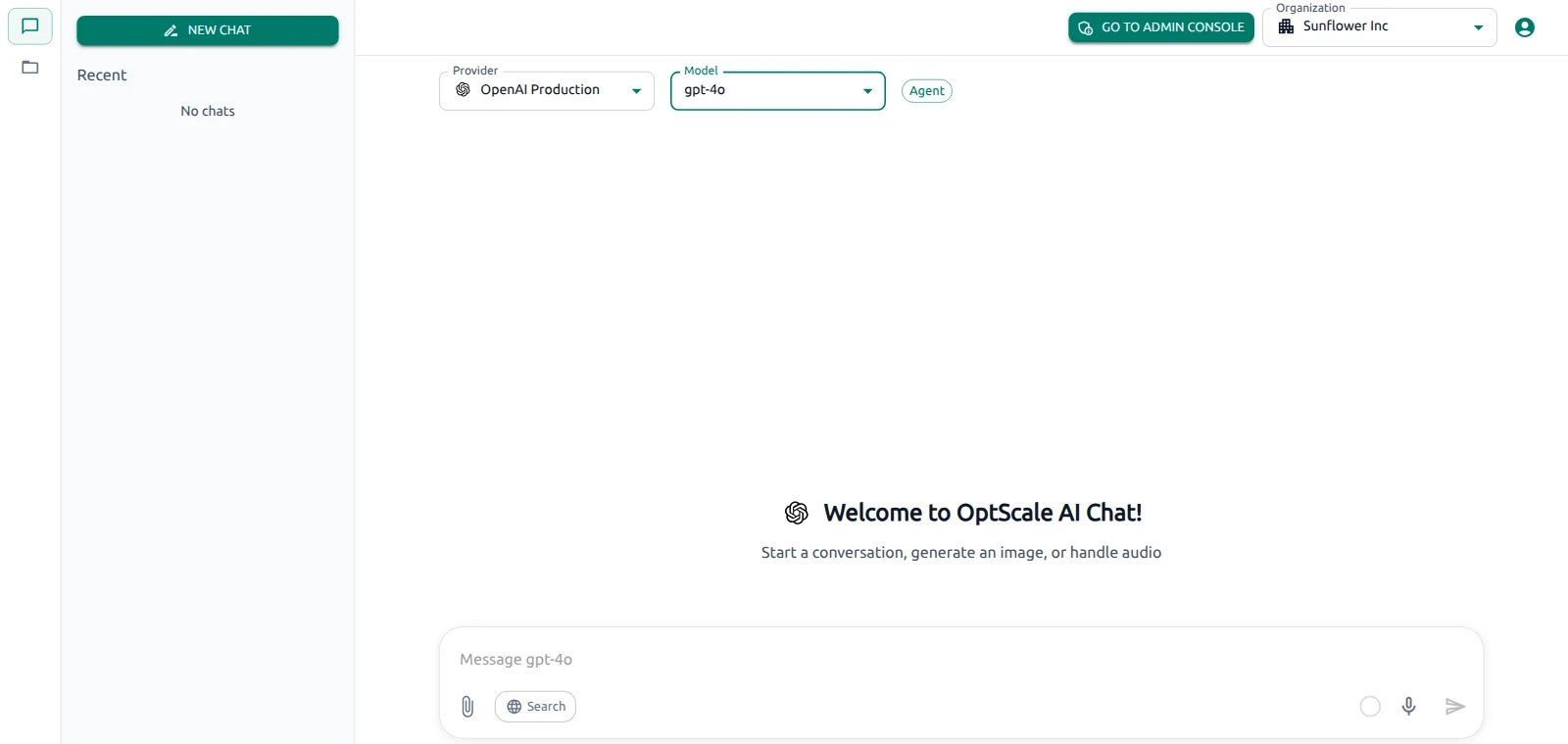
AI Chat is the interactive workspace for trying providers after they are configured.

  1. Click GO TO CHAT button from the main navigation.
  2. Select organization — Pick the same organization you configured above so policies and the provider catalog apply.
  3. Choose AI provider — Use the provider selector and pick an enabled provider from your organization.
  4. Start first conversation — Select New chat.
  5. Send first request — Type a short prompt (for example a summarization or classification task), attach files only if your policy allows, then submit.

For UI details, see Interface Overview.

For AIOps setup (tasks, models, datasets, environments, and integrations), see Model Training, Experiment Tracking, and Environments & Operations.