Switch to OptScale AI#
Route existing LLM application requests through OptScale AI Gateway without rewriting application logic. For most OpenAI-compatible SDKs and HTTP clients, migration requires updating only the connection settings.
This guide focuses on application code and configuration changes after your OptScale AI organization is set up. For organization, provider, and access configuration, complete First Steps first.

What changes after the switch#
Routing application traffic through OptScale AI Gateway provides:
- Unified provider access — Use registered providers and models through a common gateway.
- Access control — Apply organization and user-level provider access rules.
- Policies and guardrails — Evaluate requests and responses using configured governance controls. See Policies & Guardrails.
- Routing rules — Configure fallbacks and traffic distribution without changing application code.
- Observability — Track requests, token usage, cost, and provider behavior through Traces and dashboards, including Home.
- MCP integration — Use approved external tools in supported agent and Chat workflows. See MCP Servers.
For the request path through the platform, see AI request flow.
For IDE and agent integrations, see Connect OpenCode, Connect Cursor, Connect Claude, Connect Codex, and Connect VS Code.
When to switch#
Route application traffic through OptScale AI Gateway when:
- Applications use multiple AI providers and need a common access layer.
- Provider access and credentials need to be managed centrally.
- Teams need organization-wide usage, cost, or request visibility.
- Requests must follow shared policies and guardrails.
- Applications, IDE tools, and agents should use the same provider access and observability model.
Before you begin#
Make sure the following prerequisites are in place:
- An organization exists and is selected in Chat or Admin Console.
- At least one Active provider is configured under Config → Providers.
- Users sending API requests have the required Allowed providers.
Then retrieve the connection values from Chat:
-
Open Chat.
-
Select the required Organization, Provider, and Model.
-
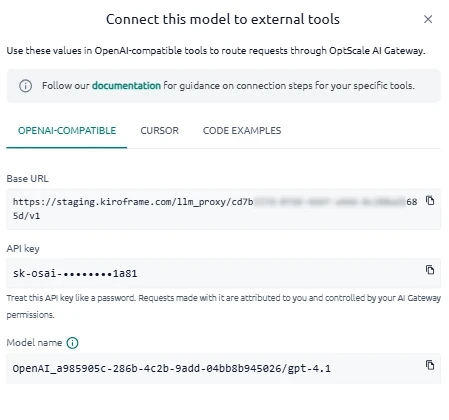
Open Connect this model to external tools.
-
Open the OPENAI-COMPATIBLE tab.
-
Copy the values shown in the dialog. Use them in place of the placeholders in this guide:
- Base URL —
<optscale_ai_base_url> - API key —
<optscale_ai_api_key> - Model name —
<optscale_ai_model_name>
- Base URL —
Do not construct the gateway URL or model identifier manually.
For details, see Get connection values from Chat.
Update connection settings#
For most OpenAI-compatible clients, migration requires replacing the provider connection values.
Before:
# Direct OpenAI connection
client = openai.OpenAI(
    api_key="sk-...",
    base_url="https://api.openai.com/v1"
)
After:
# OptScale AI Gateway
client = openai.OpenAI(
    api_key="<optscale_ai_api_key>",
    base_url="<optscale_ai_base_url>"
)
Replace the placeholders with the values copied in Before you begin:
<optscale_ai_api_key>— API key from Connect this model to external tools → OPENAI-COMPATIBLE<optscale_ai_base_url>— Base URL from the same dialog<optscale_ai_model_name>— Model name from the same dialog
Use that Model name as the model parameter:
response = client.chat.completions.create(
    model="<optscale_ai_model_name>",
    messages=[
        {"role": "user", "content": "Hello!"}
    ]
)
OpenAI-compatible example#
Install the OpenAI Python SDK:
pip install openai
Connect to OptScale AI Gateway:
from openai import OpenAI

client = OpenAI(
    api_key="<optscale_ai_api_key>",
    base_url="<optscale_ai_base_url>"
)

response = client.chat.completions.create(
    model="<optscale_ai_model_name>",
    messages=[
        {"role": "user", "content": "Hello!"}
    ]
)

print(response.choices[0].message.content)
For a ready-to-use example with the selected connection values already inserted, open Connect this model to external tools → CODE EXAMPLES in Chat.
Anthropic-compatible example#
Install the Anthropic Python SDK:
pip install anthropic
Connect to OptScale AI Gateway:
from anthropic import Anthropic

client = Anthropic(
    api_key="<optscale_ai_api_key>",
    base_url="<optscale_ai_base_url>"
)

response = client.messages.create(
    model="<optscale_ai_model_name>",
    max_tokens=1024,
    messages=[
        {"role": "user", "content": "Hello!"}
    ]
)

print(response.content[0].text)
For a ready-to-use example with the selected connection values already inserted, open Connect this model to external tools → CODE EXAMPLES in Chat.
Other clients and frameworks#
Many libraries support a custom base URL and API key.
- LangChain — Pass the OptScale AI Base URL and API key to
ChatOpenAI, or setOPENAI_API_BASEandOPENAI_API_KEYto the values copied from Chat. - LiteLLM — Set
api_baseto the OptScale AI Base URL,api_keyto the API key from Chat, and use the Model name as the model identifier. - HTTP clients — Send
POSTrequests to{base_url}/chat/completionswithAuthorization: Bearer <optscale_ai_api_key>and a JSON body that includesmodelandmessages.
Verify the connection#
After updating the connection settings:
- Send a test request from the application.
- Confirm that the selected model returns a response.
- Open Analytics → Traces and verify that the request appears.
- Open Analytics → Usage and Cost and confirm that usage is recorded.
See Traces and Usage and Cost.
Troubleshooting#
| Issue | Possible cause | Resolution |
|---|---|---|
| Authentication error | The API key is incorrect or expired | Copy the API key again from Connect this model to external tools. |
| Connection error | The Base URL is incorrect | Copy the Base URL exactly as shown in Chat. |
| Model not found | The model name is incorrect or unavailable | Use the Model name shown for the selected provider and model in Chat. |
| Tool calls fail | The selected model does not support tool calling | Select a model that supports the required capability. |
| Streaming does not work | Streaming is not supported by the selected model or integration | Check the model capabilities and integration settings. |
| TLS error | The gateway does not use a trusted HTTPS certificate | Configure HTTPS with a trusted certificate. |
Notes and limitations#
- OptScale AI Gateway must be available over HTTPS with a trusted certificate.
- The selected model must support the capabilities required by the application, such as streaming or tool calling.
See also#
- External Tools — Retrieve connection values and configure supported external clients.
- Credentials & Roles — Configure provider access for users.
- Analytics → Traces — Inspect individual requests after migration.
- Analytics → Usage and Cost — Monitor token usage and cost.