External Tools#
Connect supported external AI tools to OptScale AI through the OptScale AI Gateway. External tools use the same governed provider access, permissions, policies, and guardrails configured for the organization.
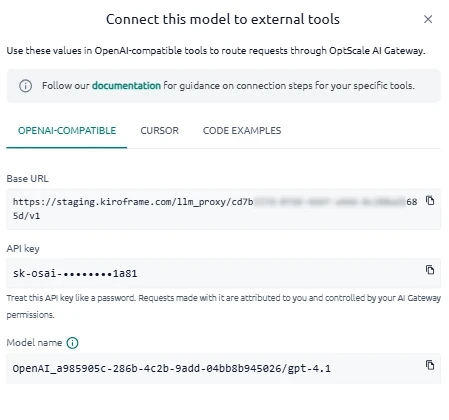
Retrieve the required Base URL, API key, and Model name from Connect this model to external tools in Chat.
Before connecting an external tool, complete the baseline setup described in First Steps, including organization and provider configuration.
Tool-specific guides:
- Connect OpenCode
- Connect Cursor
- Connect Claude Code and Claude Desktop
- Connect Codex
- Connect VS Code
If you are migrating an existing application from a direct vendor API or another AI gateway, see Switch to OptScale AI Gateway.
Get connection values from Chat#
Use Chat to retrieve the connection values required by an external tool.
The dialog provides:
- Base URL — Gateway endpoint used by the external client.
- API key — Credential used to authenticate requests.
- Model name — Identifier used by the external client to select the model.
The values are generated for the currently selected organization, provider, and model, so you do not need to construct the gateway URL or model identifier manually.
To get the connection values:
-
Open Chat and select the Organization, Provider, and Model you want to use with the external tool.
-
Click
 Connect this model to external tools in the left sidebar.
 -
Open the tab for your external tool.
-
Copy the Base URL, API key, and Model name, and use them when configuring the tool.
For more information about this Chat control, see Interface Overview — Connect this model to external tools.
Model names#
A model name identifies the model that the external client should use through OptScale AI.
Model names depend on the selected provider and model. To retrieve the correct value, select the required Organization, Provider, and Model in Chat, then open Connect this model to external tools and copy Model name.
Do not construct the model name manually.
Requirements and limitations#
External tool integrations use the OptScale AI Gateway and are subject to the following requirements:
- The gateway must be reachable from the external client over HTTPS with a trusted TLS certificate.
- Available functionality depends on the capabilities of the selected model.
- Requests are subject to applicable organization policies and guardrails.
- Provider and model availability depends on configured access.
- The external client must use the Base URL, API key, and Model name provided for the selected organization, provider, and model.
See also#
- Interface Overview — Connect this model to external tools — Retrieve connection values from Chat.
- Credentials & Roles — Configure provider access.
- Config → Providers — Configure providers and models.
- End-to-end examples — PII redaction — Verify policy behavior for gateway traffic.